
Introduction
SFTP (secure FTP) connection represents a secure way to download/upload your files from a Seedbox using an encrypted/secure FTP connection on port 2222 on our new templates and port 22 for old ones.
Filezilla provides built-in encryption for file transfers, ensuring your data is secure during transit. Additionally, users do not need a separate VPN tool for this process, as Filezilla's protocols inherently protect data integrity and confidentiality.
In this quick guide, we’ll teach you how to log into your Seedbox securely and transfer files using the sFTP protocol
Remember that using the SFTP protocol inherently secures your file transfer without requiring extra tools like VPNs, unless anonymity is a further concern.
Different platforms
We strongly recommend Filezilla as your default client for sFTP and FTP connections.
One major reason for recommending Filezilla is its support for secure FTP protocols, ensuring encrypted file transfers.
Why? Because Filezilla is supported on every operating system (Windows, Linux, OSX)
The procedure for logging is the same on every platform so follow the steps below no matter what platform you are using! 😃
Step 1 - Download and Configure Filezilla

Download the FileZilla FTP client for the platform that you are using:
Windows:
Linux:
MAC OS X:
In the File menu, choose “Site Manager…” (CTRL +S)

Step 2 - Add a New Connection/Site
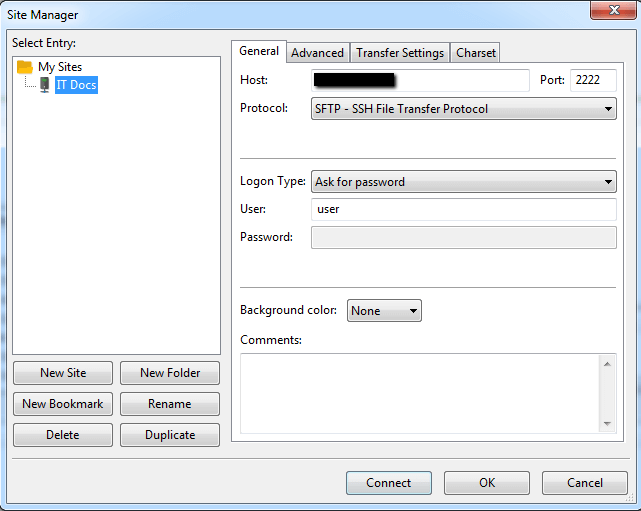
Click on the New Site button and type in a descriptive site name (in this example, “IT Docs” is used)
Type your IP address in Host.
Type the number of the Port you are using.
Choose SFTP – SSH File Transfer Protocol as your Protocol.
Pick Ask for password on Logon type
Type your FTP account username in the user field.
Click on the “Connect” button to test your new connection.
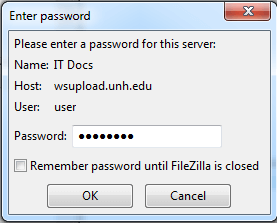
Type in your password and click OK.
Ensure all entered details, like the host address and credentials, come from a trusted source to prevent connection issues or unauthorized access.
Tip: while typing your account password you may have the ability to remember your password for this and future sessions. We invite you to do that.
Step 3 - Trust the host
While connecting to a new host for the first time, or if you change the hostname, you will receive the following notification:

Click OK to start your sFTP connection and have the ability to upload and download files.
Security Considerations
Filezilla automatically encrypts file transfers when using the SFTP protocol, providing robust data protection during uploads and downloads. Users concerned about privacy should ensure SFTP is selected, as it negates the need for a VPN unless anonymity is required for other purposes.
I don't know what to do next...
If you need any assistance, let us know by opening a chat in the bottom-right corner of your screen. We're here to help 😄